
Roles and Zones
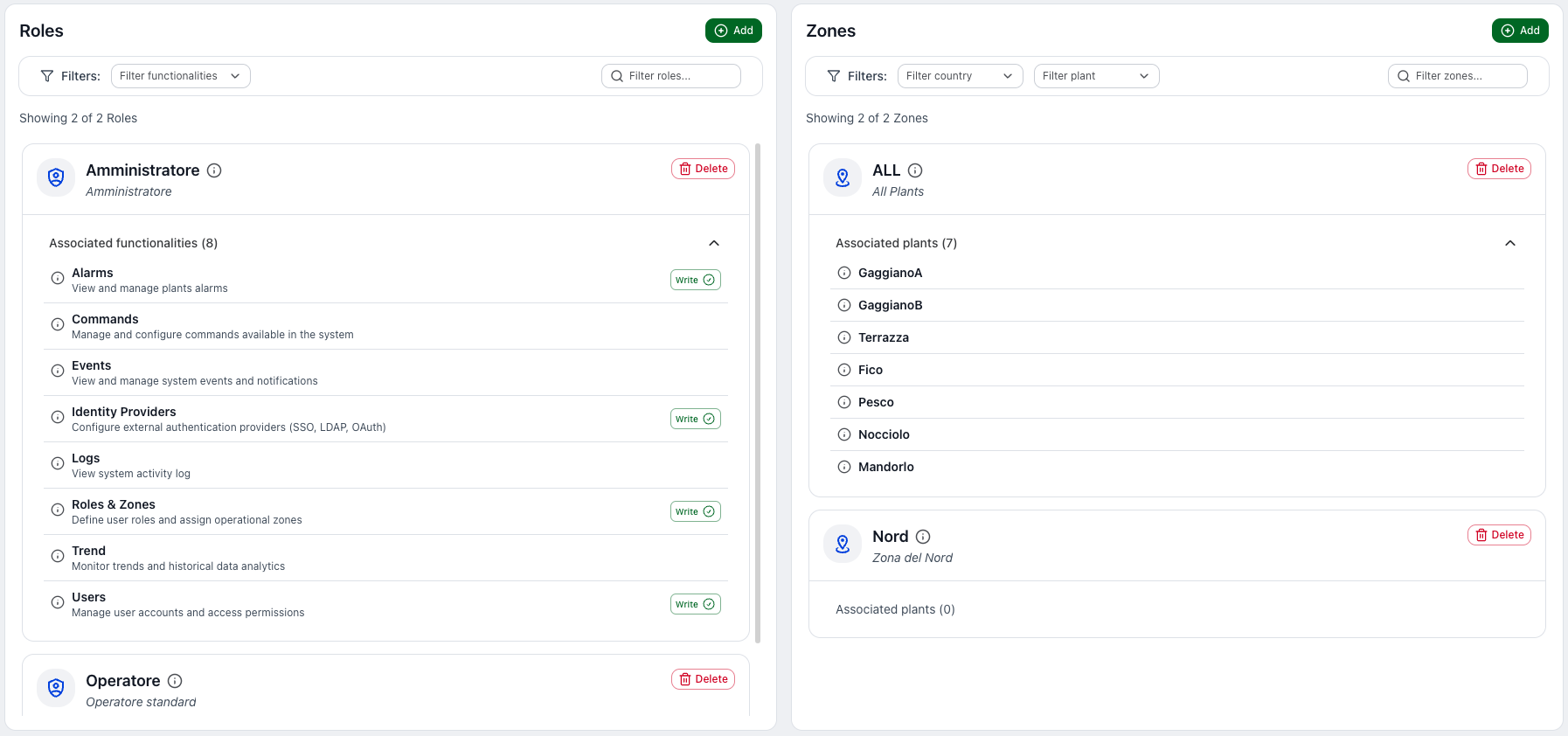
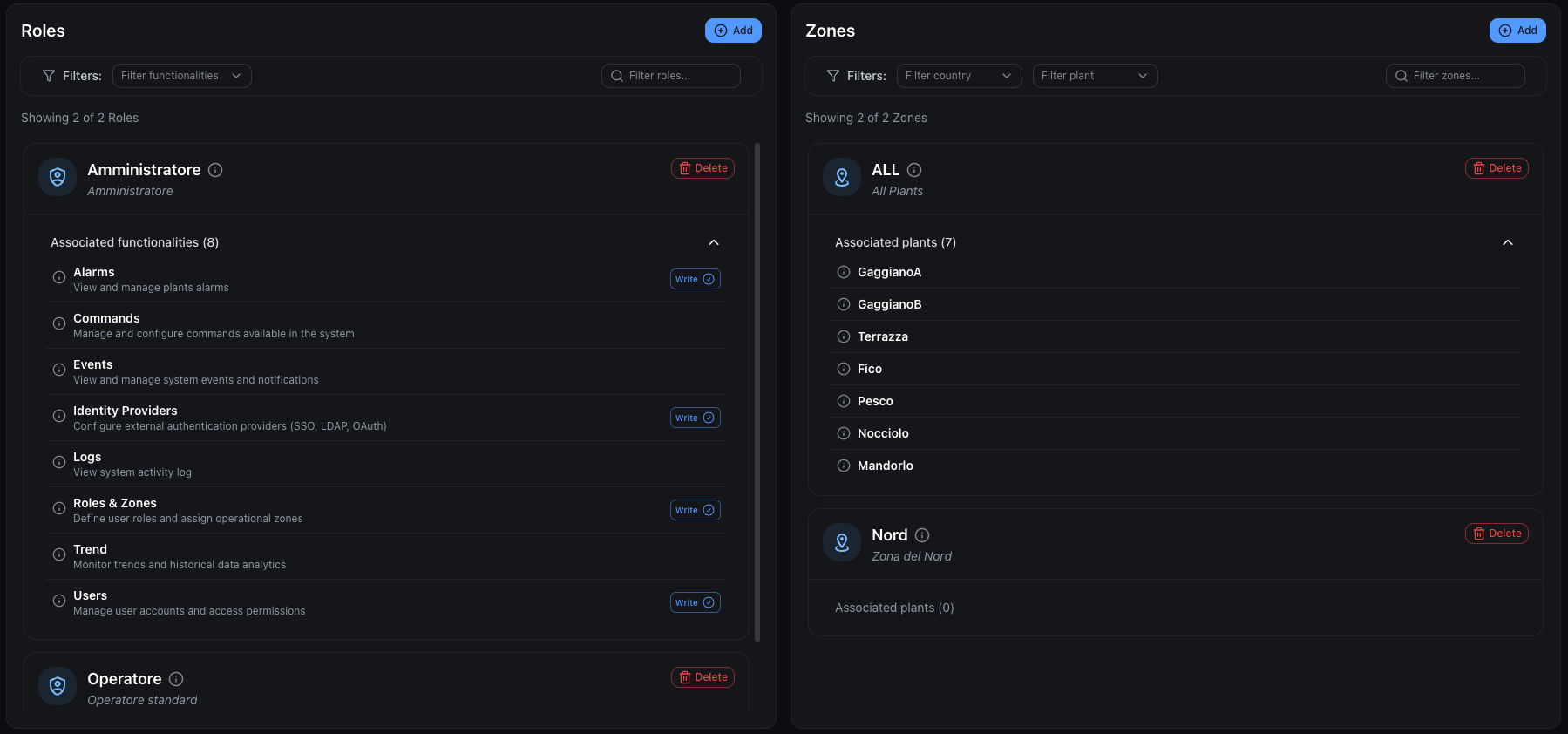
The Roles and Zones page controls access and permissions:
- a Role defines what a user can do (features and permissions)
- a Zone defines which plants the user can work on
Each user has:
- 1 Role
- 1 or more Zones
Page overview
The screen is split into two columns:
- Roles (left): list of configured roles and their assigned features
- Zones (right): list of zones and their associated plants
At the top of both columns you will find:
- an Add button
- filters and search (depending on the list)
Roles
A Role is a set of features that can be enabled/disabled for a user.
What you see in the Roles list
Each role is displayed as a card with:
- Role name and description
- Delete button (if allowed)
- an expandable area showing Assigned features (count and list)
Features typically include (examples):
- Commands
- Levels And Zones
- Trends
- Events
Filters and search (Roles)
You can use:
- Feature filter: show only roles that include a specific feature
- Role search: “Filter roles…” field
Create a new role
Click Add in the Roles column.
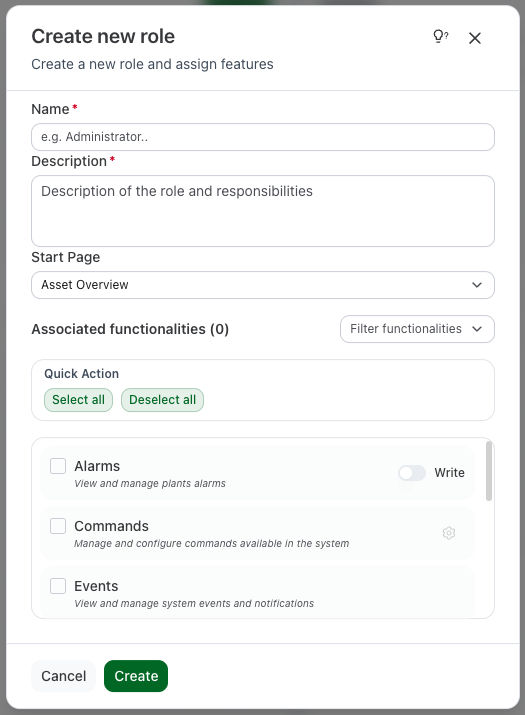
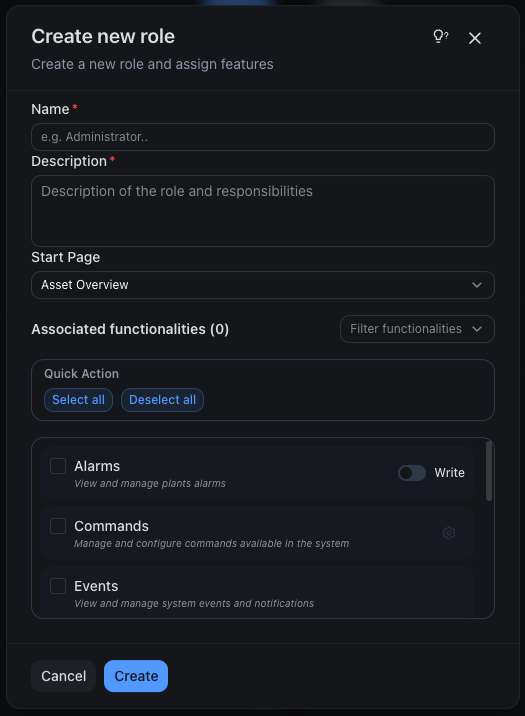
A Create new role dialog opens with:
- Name (required)
- Description (required)
- Start page: the page shown after login (e.g. Home, Trend, Events)
- Assigned features: selectable feature list
Feature selection
Inside Assigned features you will find:
- a checkbox to enable/disable the feature
- a small description of the feature
- Write switch: appears only for features that support write operations. When enabled, the user can perform actions/changes on that feature
- Gear icon: appears only for features with advanced options (e.g. Command Level). Click to open a popover with additional settings
You also have quick actions:
- Select All: select all filtered features
- Deselect All: clear the selection
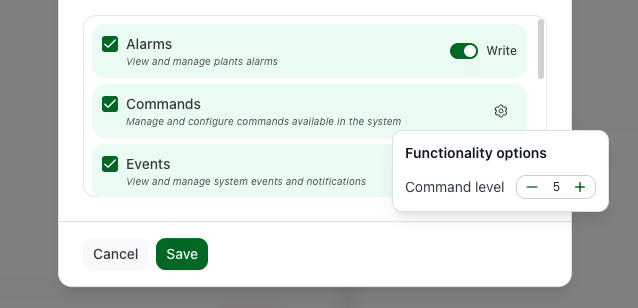
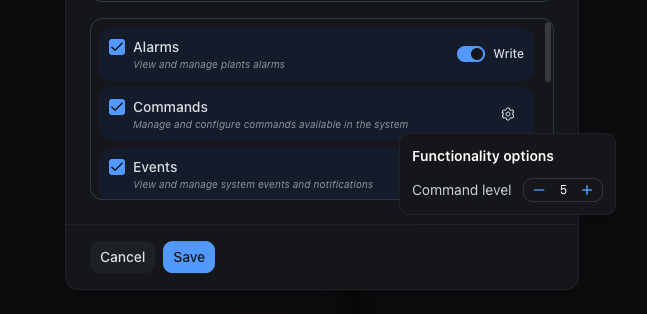
Click Create to save.
Edit a role
Click on a role card to open the window Edit Role.
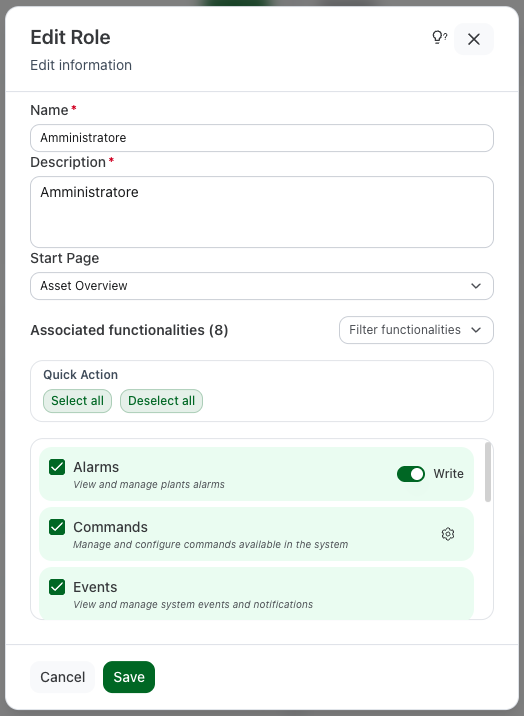
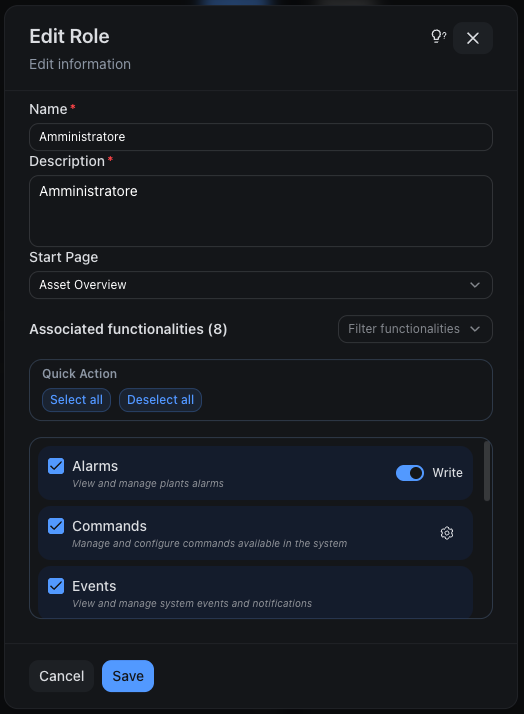
You can update:
- name and description
- start page
- enabled features and their Write permission
- advanced options (when available)
Advanced options: Command Level
For the Commands feature, an advanced option is available via the gear icon:
- Command Level: a numeric input field to set the maximum command level
This value determines which commands the user is allowed to execute.
Rule: the user can execute only commands with a level less than or equal to the role level.
Example:
- Role with Command Level = 50 → can execute commands with level 1…50
- commands with level > 50 will not be executable
Delete a role
Use Delete on the role card.
Zones
A Zone is a set of plants.
Zones define where a user can operate and which plants they can see.
What you see in the Zones list
Each zone is displayed as a card with:
- Name and description
- Delete button (if allowed)
- an expandable area showing Associated plants (count and list)
Filters and search (Zones)
You can use:
- filters available in the UI (e.g. Filter by country, Filter by plant)
- “Filter zone…” search field
Create a new zone
Click Add in the Zones column.
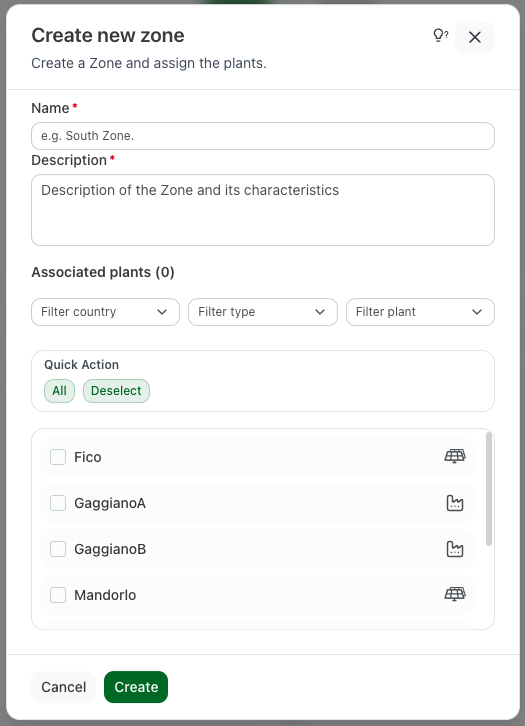
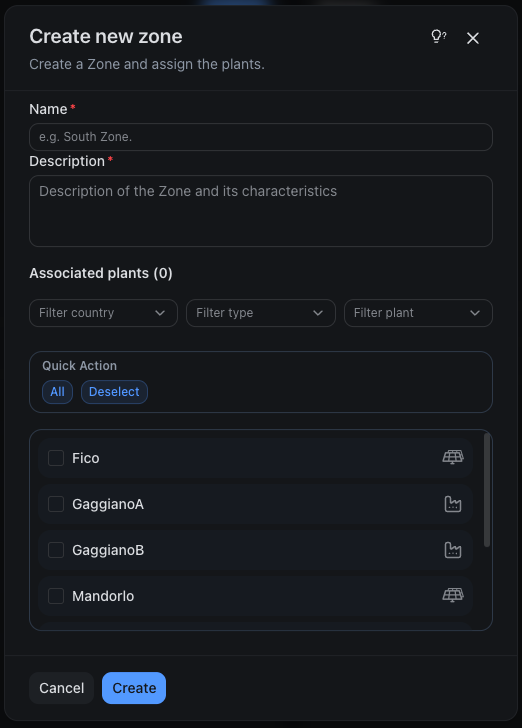
A Create new zone dialog opens with:
- Name (required)
- Description (required)
- Associated plants: selectable plant list
Plant selection
In Associated plants you can:
- filter by country
- filter by plant type (e.g. Photovoltaic, Wind)
- filter by plant name
- select individual plants using checkboxes
Each plant shows:
- Name and location (state/region)
- Type icon indicating the plant type (sun for photovoltaic, wind for wind power, etc.)
- Copy ID button to copy the plant ID to clipboard
You also have quick actions:
- Select All: select all filtered plants
- Deselect All: clear the selection
- Select All Photovoltaic: select only photovoltaic plants
- Select All Wind Power: select only wind power plants
Click Create to save.
Edit a zone
Click on a zone card to open the window Edit Zone.
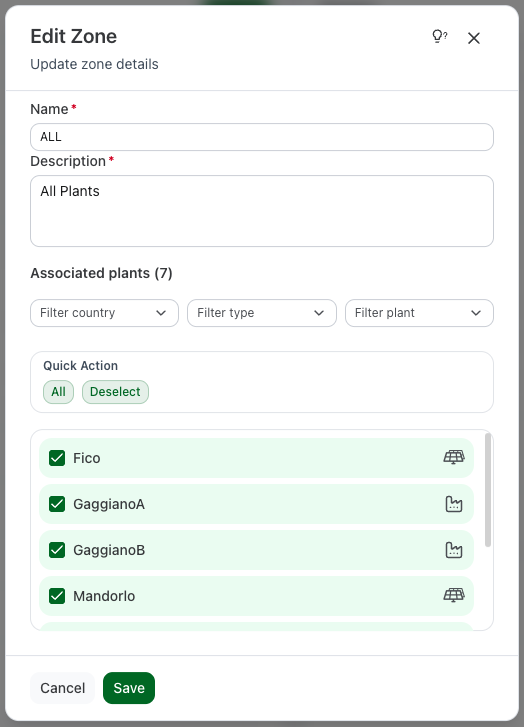
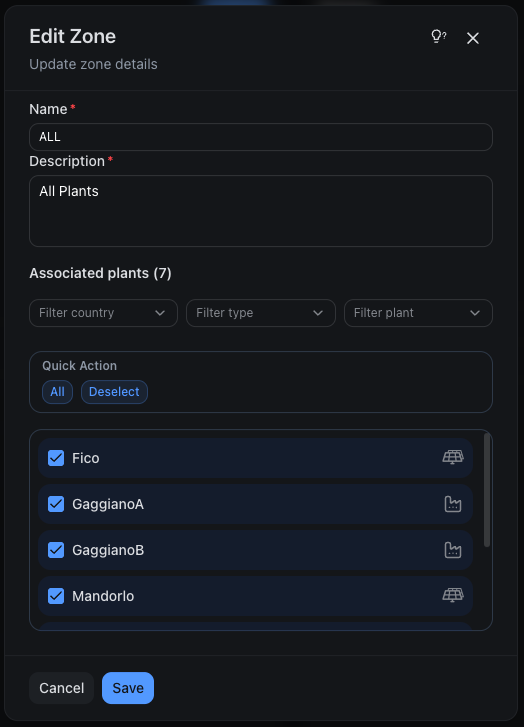
You can:
- change name and description
- add/remove associated plants
- use filters and quick actions to speed up selection
Click Save to apply changes.
Best practices
- Separate “what” from “where”: avoid creating “per-plant roles”. Use zones instead.
- Few roles, many zones: it’s often easier to maintain 5 roles and 30 zones than the opposite.
- Grant Write only when needed.
- Restrict Commands:
- enable Commands only for users who must operate remotely
- set a Command Level aligned with responsibility
- Smaller zones for operators: reduces mistakes and simplifies audits.