
Models
What is a model
A model is a template that defines:
- The type of device (e.g., inverter, turbine, generic device)
- The vendor (manufacturer)
- The nominal power of the device
- The revision (version) of the model
- The tree template that describes the device variable structure
Each device in the system is associated with a model. When you configure a plant, devices are linked to their corresponding models.
Each model:
- can have multiple revisions
- can be imported from VireoXrepository or uploaded locally
- can be updated when new revisions are available
- can be deleted only if not used by any device
Overview of Models page
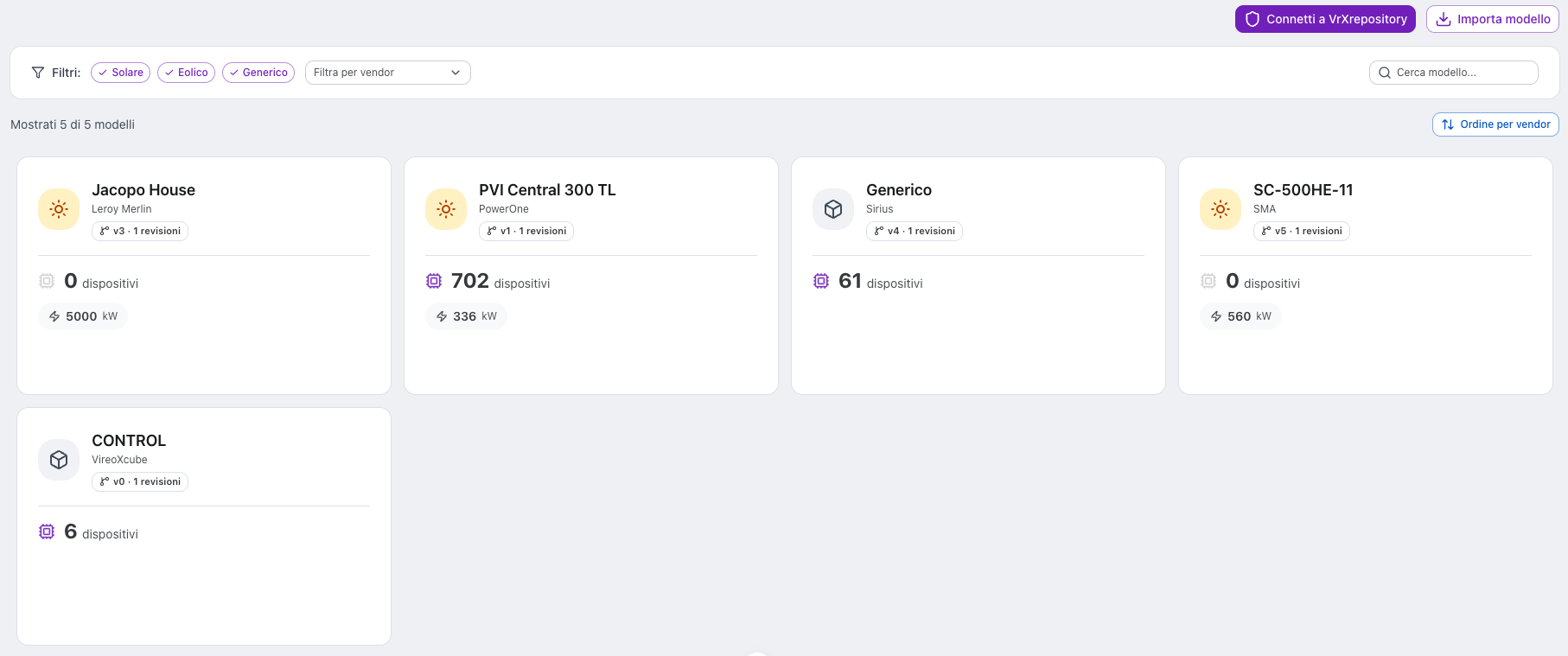
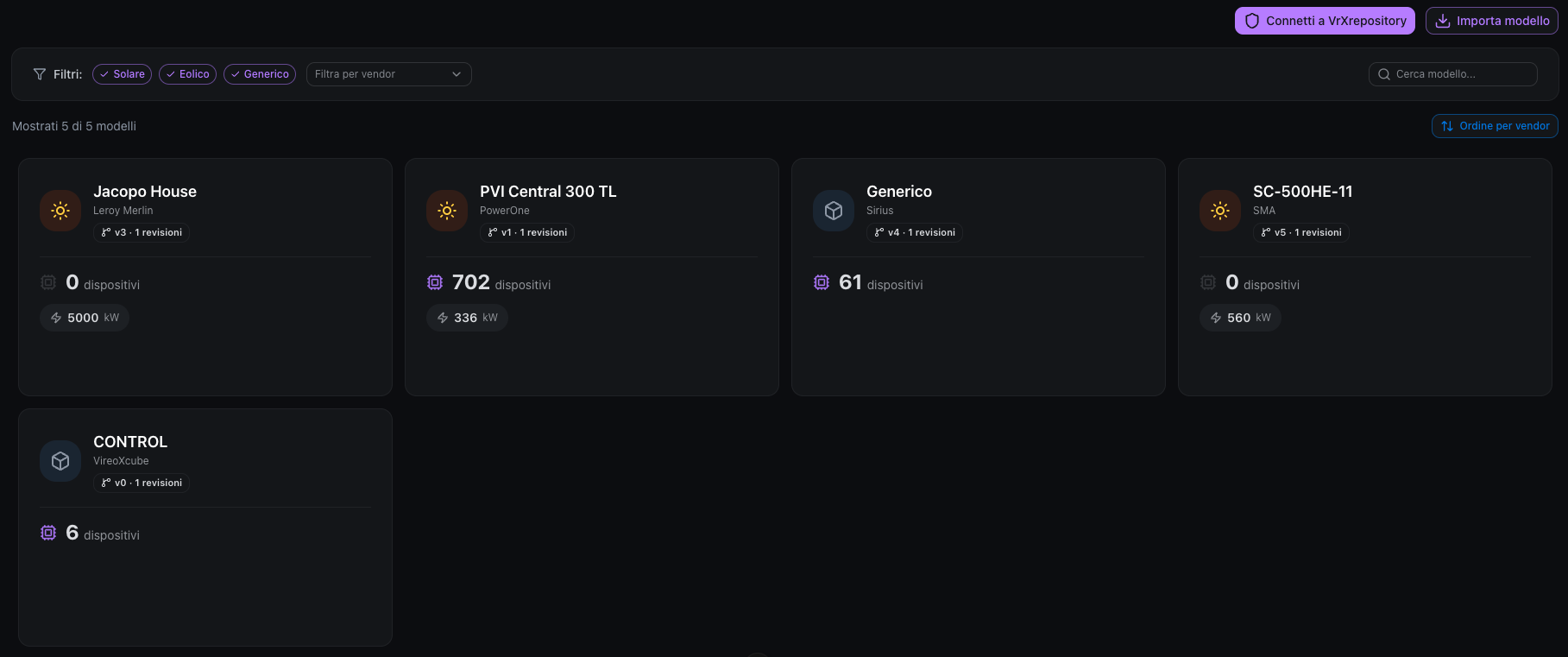
When you open the Models page, you see the list of all imported models, each model is displayed as a card.
Information shown on the card
- Model name
- Vendor
- Latest revision number
- Number of available revisions
- Nominal power (if available)
- Number of devices using the model
- Type icon (solar, wind, or generic)
- Update available indicator (orange icon)
Filters and search
The page provides tools to filter and search models:
- Type filter — Solar, Wind, Other (chip multi-select)
- Vendor filter — Filter by manufacturer (multi-select dropdown)
- Search bar — search by model name or vendor
A counter shows how many models are visible out of the total.
Sorting
Click the sort button to cycle through sorting modes:
| Mode | Description |
|---|---|
| Alphabetical | Sort by model name (A-Z) |
| Vendor | Group by vendor, then alphabetical |
| Devices | Sort by number of devices using the model (descending) |
Main actions
- Connect to Repository → authenticate with VireoXrepository to enable remote operations
- Remote Tools (after authentication) → import, update all, delete unused, reset
- Upload → upload a local
.vrxmodel file - Click on a card → open the model detail page
Connecting to VireoXrepository
To import or update models from the remote repository, you must first authenticate.
- Click Connect to Repository
- A popover appears with an authorization code
- Click the code to copy it to clipboard
- Click Go to Repository to open VireoXrepository in a new tab
- Enter the authorization code on the repository site
- The system polls for authorization (every 5 seconds)
- Once authorized, a success notification appears
Model types
The system supports different model types, each with a distinct icon and color:
| Type | Description | Icon | Color |
|---|---|---|---|
| Solar (Inverter) | Photovoltaic inverter models | Sun | Amber |
| Wind (Turbine) | Wind turbine models | Wind | Sky blue |
| Generic Device | Other device types | Box | Gray |
Importing models from the repository
To import new models from VireoXrepository:
- Authenticate with the repository (see above)
- Click Remote Tools → Import
- A modal shows all available models in the repository
- Select the models you want to import
- Click Confirm
Uploading a local model
To upload a model from a local file:
- Click Upload
- Select a
.vrxfile from your computer - The model is uploaded and appears in the list
.vrx files are accepted.Updating models
When new revisions are available in the repository, an orange icon appears on the model card.
Update all models at once
- Click Remote Tools → Update all revisions
- A modal shows all models with available updates, including:
- Model name and type
- Current revision → New revision
- Select the models you want to update
- Click Confirm
Deleting models
Delete unused models (bulk)
- Click Remote Tools → Delete all unused
- A modal shows only models that are not used by any device
- Select the models you want to delete
- Click Confirm
Permissions
Model management operations require the Configurator write permission:
| Action | Permission required |
|---|---|
| View models | None |
| Import / Upload / Update / Delete | Configurator write |
| Connect to repository | Configurator write |
Frequently asked questions
Why can't I see any models?
Models must be imported from VireoXrepository or uploaded locally. Connect to the repository and import the models you need.
What happens when I update a model?
A new revision is imported. Existing device configurations are preserved. New variables or parameters from the updated model become accessible.
Can I use multiple revisions of the same model?
Yes. Different devices can use different revisions of the same model. The revision is specified at the device level.
Why is the "Connect to Repository" button disabled?
Either you are already connected, or you don't have Configurator write permission.
How do I know if a model needs updating?
Models with available updates show an orange arrow icon on their card. You must be authenticated with the repository for update indicators to appear.
Why can't I delete a model?
A model (or revision) can only be deleted if it is not used by any device in the system. Check the "Installed on" section in the model detail to see which devices are using it.
What is a .vrx file?
A .vrx file is a packaged model file that can be uploaded directly to the system without using VireoXrepository.