
License
The License page allows you to view the details of the active license, check its validity period, see which platform functionalities are enabled and discover the available modules not yet included in the license.
Access to this page is reserved to System Operators and to users whose role includes the License functionality.
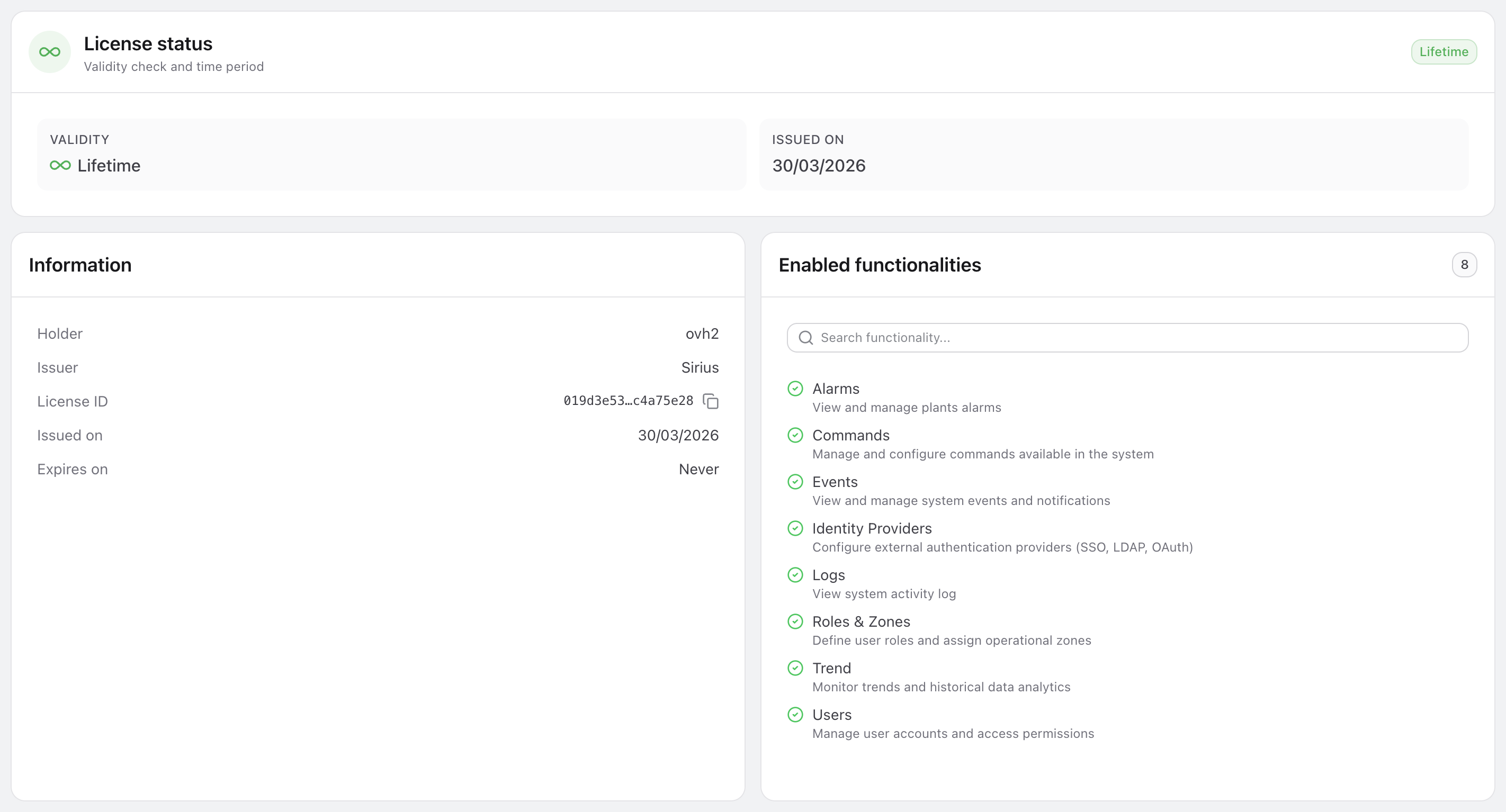
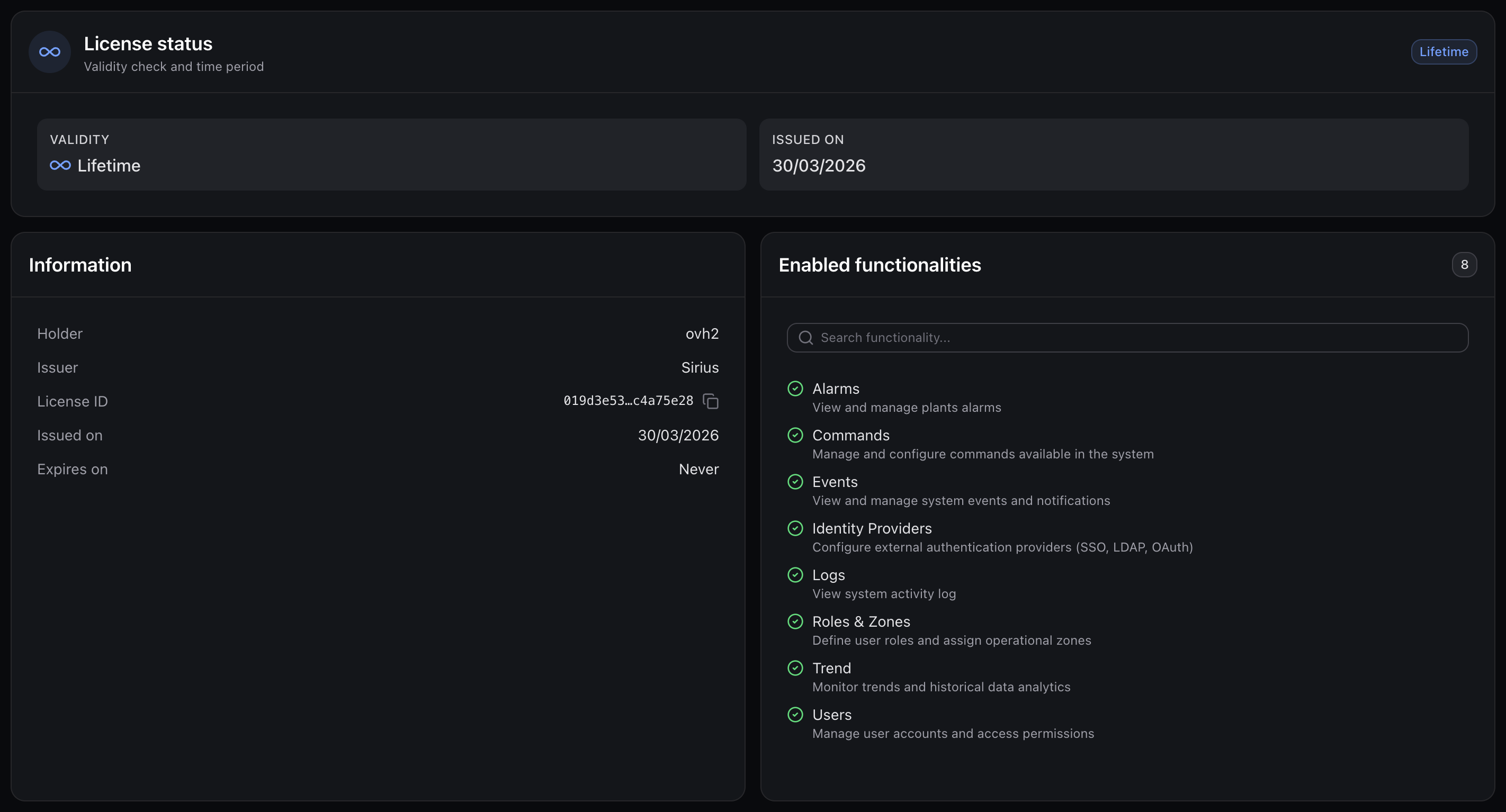
This page is read-only: it displays the current license status but does not allow modifications.
No license state
If no license is configured or found, the page displays a centered card with:
- An icon indicating the absence of a license;
- A message informing that no license is configured;
- A hint directing the user to the VireoXcube License Manager.
License status
The first card shows the current status of the license at a glance.
The header contains a colored icon badge and a status badge indicating the license state:
| Status | Description |
|---|---|
| Active | The license is valid and has not expired (green badge) |
| Expired | The license expiration date has passed (red badge) |
| Lifetime | Perennial license with no expiration date (blue badge) |
Below the header, a grid displays the main validity information:
| Field | Description |
|---|---|
| Days Remaining | Number of days until expiration. For lifetime licenses, an infinity icon and "Lifetime" label are shown instead |
| Issued On | The date the license was issued |
| Expiration Date | The date the license expires. Not shown for lifetime licenses |
Validity progress bar
For non-perennial licenses, a progress bar is displayed below the grid showing how much of the validity period has elapsed.
The bar changes color based on the percentage consumed:
| Progress | Color |
|---|---|
| 0 – 84% | Green |
| 85% and above | Yellow |
| Expired | Red |
A caption below the bar shows the exact percentage of the validity period used.
License information
The second card displays the license details as a key-value list:
| Field | Description |
|---|---|
| Holder | Name of the license holder (company or organization) |
| Issuer | Entity that issued the license |
| License ID | Unique identifier, displayed in truncated form. Click the copy icon to copy the full ID to clipboard |
| Issued On | License issue date |
| Expiration Date | License expiration date, or "Never" for lifetime licenses |
Enabled functionalities
The third card lists the platform functionalities included in the license.
- The header shows the card title with a badge indicating the total number of enabled functionalities;
- If more than 5 functionalities are present, a search input appears to filter by name or description;
- Each functionality is shown as a list item with a green check icon, its localized name and an optional description;
- Next to each functionality, the Documentation link opens the documentation page of the corresponding module.
Available modules
Below the main cards, a dedicated section lists the VireoXcube modules not included in the active license.
- Each module is shown with a lock icon, its name and a short description;
- The Learn more link opens the module documentation, useful to understand what it offers before a potential purchase;
- The section is hidden when the license already includes every module.
Public demo
At the bottom of the page, a card invites you to try every module on the VireoXcube public demo: the Go to the demo button opens the demo site, where all functionalities can be explored with sample data.
Expiry notice at login
If the license has expired or expires within 30 days, a notification with the remaining days is shown at login. The notice appears once per session and is visible to System Operators and to users whose role includes the License functionality.
Frequently asked questions
Where do I generate or renew a license?
License management is not done within VireoXcube. You must use the dedicated VireoXcube License Manager web application. Contact your system administrator or Sirius for access credentials.
What happens when a license expires?
The status badge changes to Expired, the progress bar turns red, and platform functionalities may become restricted depending on the license terms.
What is a lifetime license?
A lifetime (perennial) license has no expiration date. It displays an infinity icon, the Lifetime badge, and does not show an expiration date or a progress bar.
How do I copy the License ID?
Click the copy icon next to the truncated ID in the License information card. A tooltip confirms that the full ID has been copied to the clipboard.