
Login
System Login
This guide explains how to sign in to the system using username and password or SSO (Single Sign-On), and how two-factor authentication (2FA) works.
It is intended for non-technical end users.
Login page
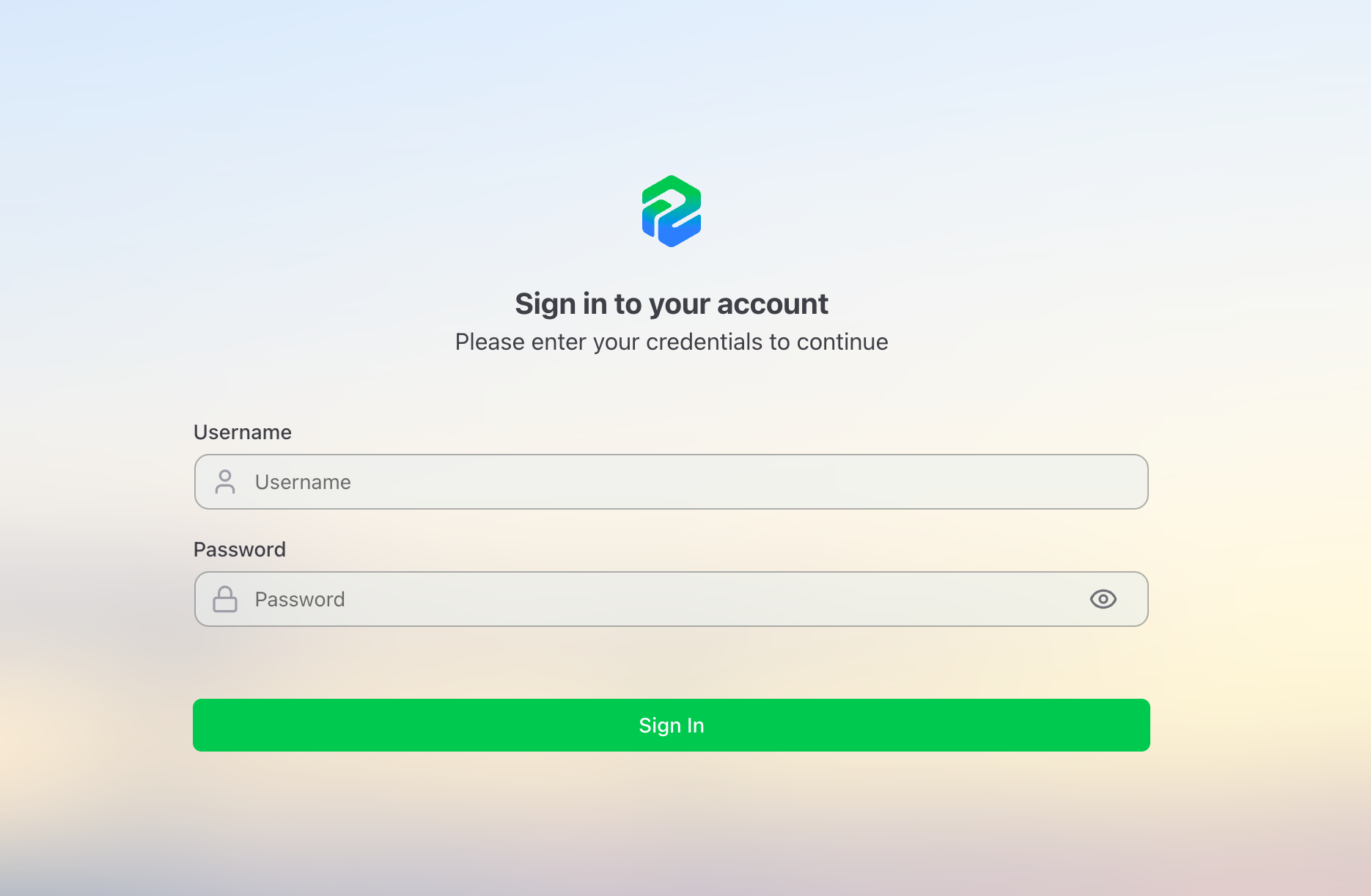
The login page supports two authentication methods:
Standard login (username and password)
Enter your credentials:
- Username
- Password
After entering your credentials, click Sign In.
If the credentials are correct:
- access is completed or
- the system asks for a 2FA code, if enabled.
SSO login (Single Sign-On)
If your administrator has configured one or more SSO providers (e.g. Microsoft or Google), the corresponding buttons are displayed below the standard login form.
To log in via SSO:
- Click the button for your provider (e.g. Sign in with Microsoft or Sign in with Google)
- You will be redirected to the provider's login page
- After successful authentication, you will be automatically redirected back to VireoXcube
What is two-factor authentication (2FA)?
2FA adds an extra layer of security.
In addition to username and password, you must enter:
- a 6-digit temporary code
- generated by an authenticator app (e.g., Google Authenticator, Microsoft Authenticator).
First login with 2FA enabled (initial setup)
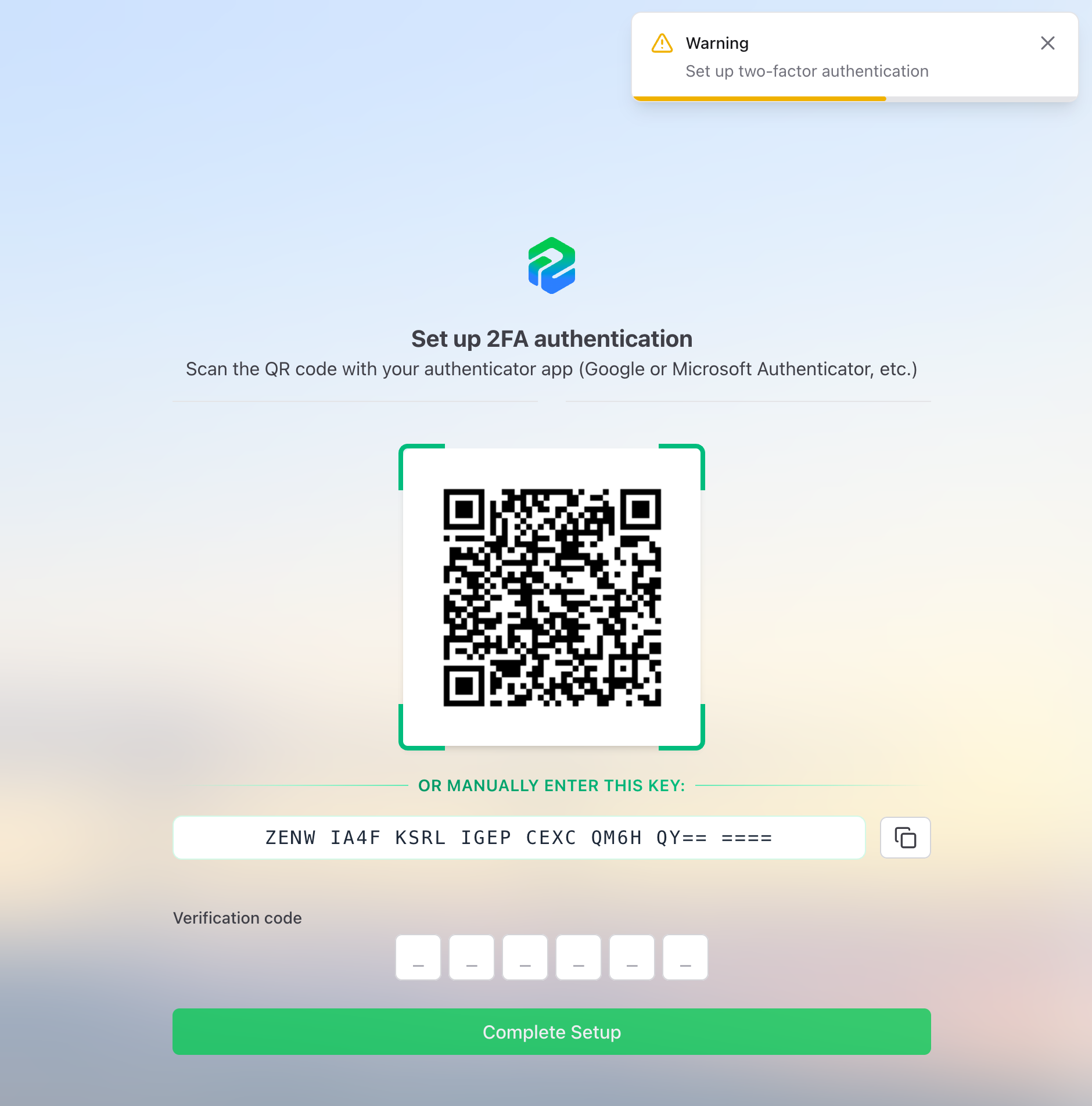
If 2FA is enabled and not yet configured, after login you will see the setup page.
What to do
- Open an authenticator app on your smartphone.
- Scan the QR code shown on the screen. Alternatively: manually enter the secret key displayed below the QR code.
- Enter the 6-digit code generated by the app.
- Click Complete Setup.
Subsequent logins with 2FA already configured
On subsequent logins:
- the QR code is no longer shown
- only the 6-digit verification code is required
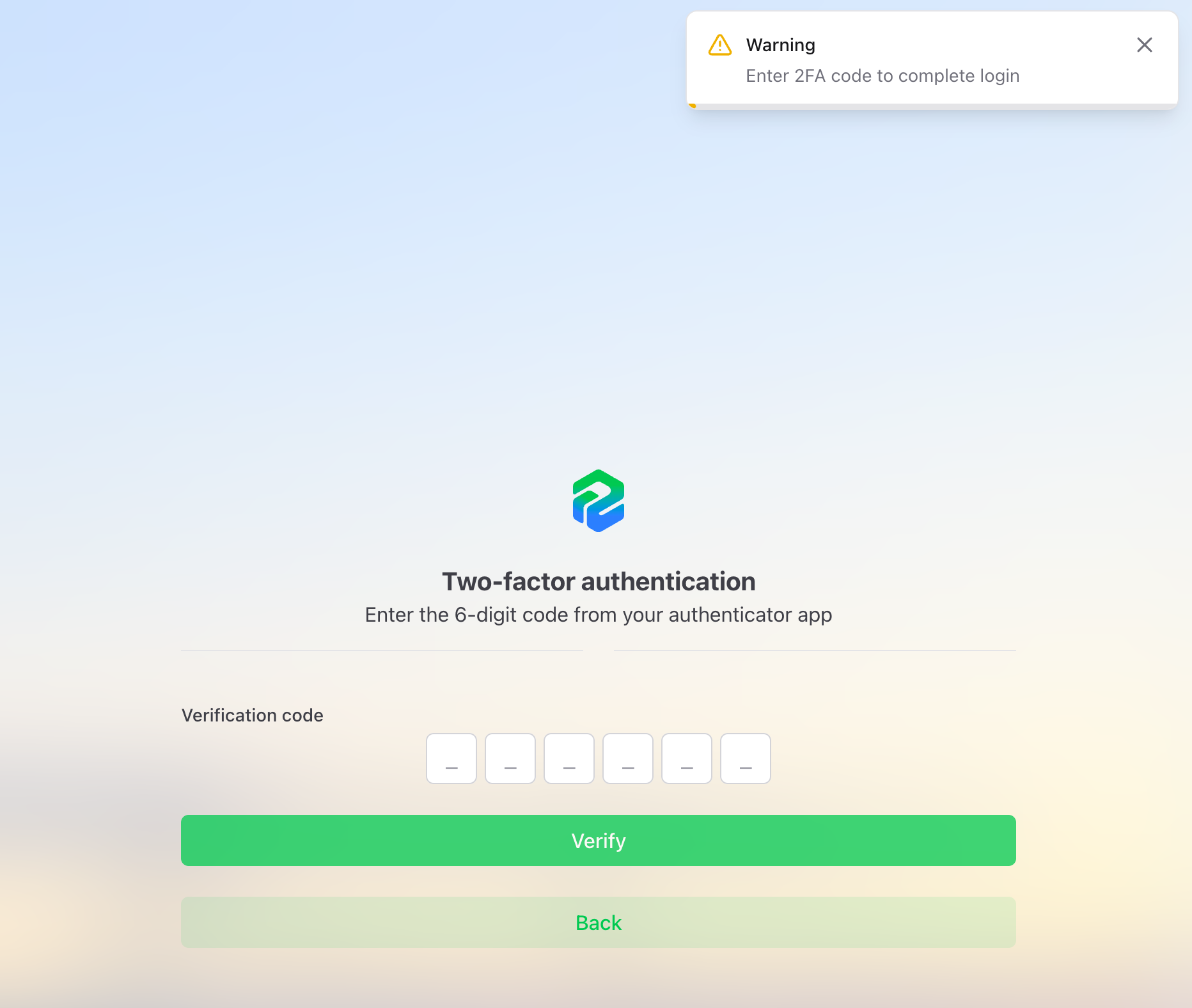
What to do
- Open your authenticator app.
- Enter the 6-digit code.
- Click Verify.
This behavior is expected and means that 2FA is already active.
Expired password
If your password has expired, the system will prompt you to change it before completing the login.
What to do
- Enter your current password
- Enter a new password
- Confirm the new password
- Click Change Password
After successfully changing your password, you can proceed with the login (including 2FA verification if enabled).
Session management
Your login session has a limited duration. When it expires:
- the system will show a login modal asking you to re-authenticate
- you do not need to reload the page
- after successful re-authentication, you can continue working from where you left off
Frequently asked questions
I forgot my password, what should I do?
If you no longer remember your password, you cannot recover it yourself.
You must contact a system user with user management permissions.
From the User Management page, they can:
- reset your password;
- as a result, also reset your 2FA.
After the reset, you will be asked to set up 2FA again at your next login.
I changed my phone or lost access to 2FA, what should I do?
If you no longer have access to your authenticator app:
- contact a user with user management permissions;
- from the User Management page, they can:
- reset only the 2FA, without changing your password.
At the next login:
- the system will show the QR code again,
- allowing you to register your account again in your authenticator app.
Can I copy the secret key instead of scanning the QR code?
Yes. Below the QR code, a secret key is displayed. You can click Copy to Clipboard and manually enter it in your authenticator app. This is useful if your camera is not working.
What authenticator apps can I use?
You can use any TOTP-compatible authenticator app, such as:
- Google Authenticator
- Microsoft Authenticator
- Authy
- 1Password
- Any other app that supports time-based one-time passwords (TOTP)